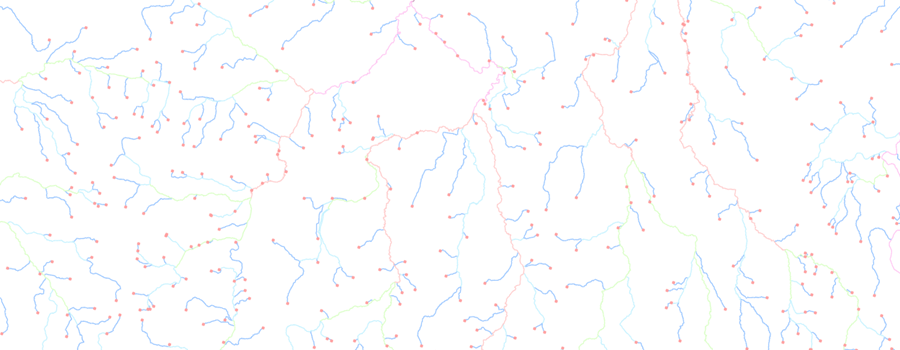
Analyse your river network


You can analyse a river network processed by RivEX.  Results can be stored in dBase files, Shapefiles or sent directly to MS Excel.

Analysing a river network is different to attributing a network.  The analysis process does not enhance the network by adding new fields.  Instead it uses fields created by the attribution process to extract out network statistics such as the number of stream order reaches per catchment.

You must process your river network with RivEX and build the required fields before you can use the analytical tools.  An analytical tool will request the fields it requires to complete the analysis.  The current version of RivEX can analyse the network for the following:

If you choose to send data directly to Excel then be aware that it is possible to break the link between ArcMap and Excel by simply clicking on the Excel window during data transfer, always allow it to finish and minimise the application window!


Basic network properties

You can extract out the basic properties for the entire  network.  This information does not require you to build any attributes for your network, other than node information.  These properties can be considered as the raw "nuts" & "bolts" information of the network.  The basic properties extracted are:

  • Number of polylines in the network
  • Total number of vertices in the network
  • Minimum polyline length
  • Maximum polyline length
  • Sum polyline length
  • Mean polyline length
  • Number of Nodes
  • Number of Mouths
  • Number of Sources
  • Number of Pseudo nodes
  • Number of nodes with valency X
  • Number of interior links
  • Number of exterior links
  • Number of outlet links

A typical output would be:

Network Property Value
Number of Features 21778
Number of Vertices 460039
Min Length 0.99
Max Length 30834.73
Sum Length 15148149.71
Mean Length 695.57
Number of Nodes 21610
Number of Mouths 121
Number of Sources 8773
Number of Pseudo nodes 3588
Number of nodes with valency 1 8878
Number of nodes with valency 2 3588
Number of nodes with valency 3 9074
Number of nodes with valency 4 70
Number of I Links 12925
Number of E Links 8778
Number of O Links 75

See online manual for more details >> click here

Back to Top


Node statistics

RivEX is able to extract and store information about each node. You can process all nodes in a river network or choose to exclude pseudo nodes from the output. Current node statistics extracted are:

  • Node ID
  • Valency
  • Node Type
  • Number of polylines flowing into the node
  • Number of polylines flowing out of the node
  • Minimum Strahler order value flowing into node
  • Maximum Strahler order value flowing into node

A typical output would be:

NodeID

Valency

NodeType

NumInFlow

NumOutFlow

MinStrahlr

MaxStrahlr

1 2 P 1 1 2 2
2 2 P 1 1 2 2
3 4 B 2 2 2 2
4 4 C 3 1 1 2
5 3 D 1 2 2 2
6 4 B 2 2 1 2
7 2 P 1 1 2 2
8 1 M 1 0 2 2
9 2 P 1 1 2 2
10 2 P 1 1 1 1
: : : : : : :

See online manual for more details >> click here

Back to Top


Catchment statistics

Catchment statistics are computed for each catchment within the river network.  A catchment is defined as all polylines flowing to a mouth node.  Many of these statistics require you to have processed and attributed your network with RivEX.  If you do not have these fields in your river network attribute table you must  return to the main RivEX interface and build them.  The current version can extract out the following catchment statistics:

  • Sum polyline length
  • Length of main channel
  • Maximum Strahler stream order
  • Maximum Shreve stream order
  • Number of interior links
  • Number of exterior links
  • Number of outlet links
  • For each Strahler order
    • Number or reaches
    • Sum polyline length
    • Bifurcation ratio

A typical output for a network with 4 catchments would be:

Catchment ID Total river length Main channel length Max Strahler Max Shreve # of Interior Links # of Outlet Links # of Exterior Links
72 342.90 342.90 1 1 0 0 1
146 195379.83 21979.74 5 173 234 1 173
150 17707.96 5817.91 3 14 20 1 14
153 402.70 402.70 1 1 0 0 1
: : : : : : : :

Catchment ID Sum length for Strahler order 1 # of segments for Strahler order 1 Bifurcation ratio 1 Sum length for Strahler order 2 # of segments for Strahler order 2 Bifurcation ratio 2
72 342.9 1 0 0
146 5644.4 173 4.43 533.4 39 5.57
150 8719.2 14 3.5 588.6 4 4
153 402.7 1 0 0
: : : : : : :

Catchment ID

Sum length for Strahler order 3 # of segments for Strahler order 3

Bifurcation ratio 3

Sum length for Strahler order 4 # of segments for Strahler order 4

Bifurcation ratio 4

Sum length for Strahler order 5 # of segments for Strahler order 5
72 0 0 0 0 0 0
146 707.4 7 2.33 658.3 3 3 435.8 1
150 400.0 1 0 0 0 0
153 0 0 0 0 0 0
: : : : : : : : :

See online manual for more details >> click here

Back to Top


Network widths

RivEX can calculate network width data for each catchment using the mean polyline length or a user defined distance.  The mean polyline length is calculated using the entire network. Network width data can produce a large number of tables so it may be more manageable for you to direct output to MS Excel.  For example if you supply a network that has 1000 catchments (remember a single coastal polyline would be treated as a catchment) then the network width process will generate 1000 dBase files.

A typical output for a single catchment with network width distance set to 1Km would be:

Distance (m) Count
1000 3
2000 5
3000 6
4000 15
5000 15
6000 18
7000 9
8000 10
9000 9
10000 13
11000 24
12000 24
13000 26
14000 25
15000 20
16000 8

This data can be plotted in your preferred statistical package.  The above sample data is plotted below.

[Network width graph]

See online manual for more details >> click here

Back to Top


Fractal dimension

RivEX can extract the information required to work out the fractal dimension of a catchment.  After entering the required parameters, RivEX will for each catchment, create a series of grids defined by your cell sizes and count how many of the cells intersect the polylines. 

The fractal dimension process can potentially produce a large amount of output so it may be more manageable for you to direct output to MS Excel.  For example if you supply a network that has 1000 catchments (remember a single coastal polyline would be treated as a catchment) then the fractal dimension process will generate 1000 dBase files. 

An added advantage of sending data to Excel is that RivEX calls the in-built slope  function to calculate the fractal dimension value.

If you choose to send data directly to dBase files then only the count values are stored and you can process this data in your preferred statistics package.

A typical output for a single catchment would be:

Cell Size Count Log of Count Log (1/Cell size)
100 534 2.727 -2
200 244 2.387 -2.301
300 145 2.161 -2.477
400 98 1.991 -2.602
500 71 1.851 -2.698
600 56 1.748 -2.778
700 45 1.653 -2.845
800 34 1.531 -2.903
900 29 1.462 -2.954
1000 27 1.431 -3
1500 15 1.176 -3.176
2000 9 0.954 -3.301
2500 7 0.845 -3.397
3000 6 0.778 -3.477

The fractal dimension is the slope of the best fit line for the log of count plotted against log of (1/cell size) which in this example is 1.373.  The above sample data is plotted below.

[Fractal dimension graph]

Caution should be used when selecting cell sizes.  Small cell sizes for large catchments will result in long processing times and the computer may become unstable. Whilst RivEX will accept data in latitude/longitude you must re-project your data into a  projection that uses meters.  For latitude/longitude data one unit of measurement in the X axis is not equivalent to one unit of measurement in the Y axis, and this changes with latitude.

See online manual for more details >> click here

Back to Top


Upstream segment identifier

Using the power of a recursive procedure, RivEX is capable of identifying all polylines upstream of a polyline.  You can choose to process a single polyline or the entire network.  The output is a table of all polyline ID's and all polyline ID's upstream of them. 

Such information is useful for tallying up what is upstream of a polyline.  For example, you have encoded your river network with habitat quality information.  You may want to sub-divide this into sub catchments.  You could do this by doing a spatial selection if you had the sub-catchment boundaries or by counting the upstream polylines.  RivEX identifies which polylines are upstream of a polyline and writes this to a table.  Such tables can be loaded into databases such as MS Access and very quickly analysed.  A walk through example of using a segment ID table with the RELATE function can be seen here.

In the image below a single catchment is shown with it's polyline ID's.  The adjacent table is the output for the first  17 rows.

[Segment Identification image]

Polyline ID Upstream Polyline ID
1 1
2 2
3 3
4 4
5 5
5 3
5 4
6 6
6 1
6 2
7 7
7 6
7 1
7 2
7 5
7 3
7 4

The above example would generate a table of 56 rows.  For large networks this tool can produce very large tables.  All output is directed as tables to a Geodatabase in the default output directory.

See online manual for more details >> click here

Back to Top


Calculate between barrier distances

RivEX is capable of computing available river lengths between barriers or river source.  A barrier is a point snapped to the network.  Such points represent real world structures such as weirs, dams or any other feature blocking the path upstream.

Using the RivEX derived fields catchment ID and accumulated upstream lengths RivEX will generate an Excel file listing the barriers and available upstream lengths.

Imagine a fish was swimming upstream from a barrier.  It could swim all the way to the source of every tributary or it could be stopped by the next upstream barrier.

The figure below demonstrates what is identified by this analysis.  Here we see 4 barriers snapped to the network (the red points). Polylines have been coloured to indicate the limits of the upstream searching.  For example, a fish travelling upstream of barrier 9 is limited by barriers 4 and 5 but is able to reach the sources of four tributaries.  The combined distance of all these possible routes (identified by the magenta lines) is what RivEX calculates and stores.

[ A diagram showing how barrier analysis works ]

The  output includes a list of all barriers, their intersecting polyline ID, catchment ID and total upstream lengths (as if there were no barriers).  Then for each catchment the barrier and available upstream lengths are listed.  These are stored as Excel worksheets.  Your network is not coded to indicate the limits of upstream length.

See online manual for more details >> click here

Back to Top


Site spacing

RivEX can calculate  the distance between sites along a single channel.  Such sites could represent riffle-pool sequences, debris dams, physical features, biological / chemical monitoring sites, in fact any feature that can be represented as a point.  The sites MUST be snapped to your river network and identified with a unique ID.  They must follow a sequential order along a single channel and not be distributed through out sub-catchments.  The images below demonstrate a valid  and invalid  point dataset.

[Tick]A valid point dataset for site spacing calculations - the sites follow a single channel

[ Sites must be located in sequential order along a single channel ]

[Cross]An invalid point dataset for site spacing calculations - the sites are
distributed within different sub-catchments.

[ An invalid dataset for the site spacing tool ]

RivEX outputs the information directly to MS Excel.  The workbook will contain at least two worksheets: one listing the sites and their distance from the network mouth, the other listing the distances between pairs of sites.  A third worksheet will be created only if you have selected the build matrix option, this will generate a matrix of distances for all combinations of sites (limited to 255 sites).  Using the above valid data example, the typical output for sites 1 to 6 would be:

Sites processed worksheet.
Note that catchment ID will always be the same for all sites.

Site ID Catchment ID Distance to Mouth
1 2 62410.86
2 2 62114.48
3 2 61544.36
4 2 61052.79
5 2 60533.21
6 2 59822.57
: : :

Site spacing worksheet.

From site ID To site ID Distance
1 2 296.37
2 3 570.12
3 4 491.56
4 5 519.58
5 6 710.64
: : :

An example of the distance matrix built by RivEX

[ An example of a distance matrix generated from the sites]

To be able to use this tool your network must have been pre-processed with RivEX for calculating catchment ID, distance to network mouth and have segment identifier tables built.  Your network is not coded to indicate the between site distances, nor are polylines created that  link the sites together.

See online manual for more details >> click here

Back to Top


Locating sources for sites

RivEX can locate and calculate the distance to source for each input site.  The source is defined as the point furthest away from the network mouth, upstream of the input site.  The sites MUST be snapped to your river network and identified with a unique ID as shown below.

[ Locating sources example ]

A typical output would be:

Site ID Catchment ID Source ID The distance the source is from network mouth The distance the site is from network mouth The distance the source is from site Polyline ID
1 1 7 71745 70329 1416 12
2 1 331 76729 74228 2501 134
3 1 331 76729 75715 1014 135
4 1 31 74302 36868 37433 1099
5 1 331 76729 42555 34174 222
6 1 331 76729 13267 63462 876
: : : : : : :

To be able to use this tool your network must have been pre-processed with RivEX for calculating catchment ID, distance to network mouth and have segment identifier tables built.

See online manual for more details >> click here

Back to Top


Extract upstream & downstream polyline ID's

RivEX can extract and store in separate tables the adjacent upstream and downstream polyline ID's for each polyline in the network.  An example of the output is shown below.

Network
[ Example network ]
Upstream Table
Polyline ID Upstream ID
3 1
3 2
6 3
6 4
5 3
5 4
8 6
8 7
9 5
9 8
Downstream Table
Polyline ID Downstream ID
1 3
2 3
3 6
3 5
4 6
4 5
6 6
7 8
5 9

Note that polylines at the source have no upstream polyline and are not reported in the table.  The same situation occurs with mouth polylines which have no downstream polylines.

RivEX will generate metadata for the above process which you can read in ArcCatalog.  Remember the style sheet filters what you see, so you will need to swap between different style sheets to see specific information generated by RivEX.

See online manual for more details >> click here

Back to Top


Link all sites within a single layer

A typical analysis of river data is to ask what is the nearest monitoring site / gauging station / pollution incident / weir / fish farm location to my site of interest?  You might also be asking questions such as what are all the nearest high quality sites within 10Km of a pollution source?

RivEX will take a single layer of points representing sites snapped to the river network and attempt to build routes (links) between all sites.  The output will typically be sent to Excel but you have the option to create a Shapefile to allow you to visualise your results. In the example image below routes from site 2>5 and 6>13 are displayed, the actual Shapefile will contain all combination of routes.

[ Linking sites within a single layer ]

As RivEX attempts to link all sites with all other sites in the same layer this will generate a large number of routes to test.  For example a point dataset containing 256 monitoring sites would generate 65536 combinations (2562).  Note, more than 256 sites would exceed the capacity of MS Excel XP/2003.  RivEX optimises the linking process by firstly organising sites into catchments and then testing and storing the route only once, i.e. route from site A to B is created but the route from site B to A is not as this is simply the reverse and already identified. The number of routes generated if all sites were snapped to a network in a single catchment would be (n 2 - n ) / 2 where n  is the number of sites in the input layer.

An example of the attribution information stored for each identified route is shown below

From Site ID To Site ID Length Intersecting polyline for From site Intersecting polyline for To site
2 5 31672.51 51110191 51110009
6 13 50515.17 51114645 51110321

Note: RivEX does not use a shortest path algorithm for generating the routes.  It takes advantage of the dendritic nature of your river network (polylines flowing in a downstream direction).  Refer to online manual for further information on how RivEX links sites.

See online manual for more details >> click here

Back to Top


Searching for sites upstream of input site

This tool will utilise RivEX fields and existing segment identifier tables to identify sites upstream of a site. Supply an input  layer of snapped sites and the tool will list for each site any sites from a search  layer that were found upstream of it.  RivEX can filter the data based upon any existing selection for the site layer. A typical Excel output is shown below for the network and its snapped sites. Sites with a -1 are sites that have no sites upstream of itself. If the output is too large for Excel it will be written to a dBase file.

[ The Excel output from this tool ]

[ A network with snapped sites ]


See online manual for more details >> click here

Back to Top


Search for sites downstream of an input site

Using a recursive procedure and a network attributed by RivEX the sequence of sites visited when travelling downstream from a site to the river mouth can be extracted.  The layers must be point layers snapped to the network and could represent monitoring sites, surveys or physical barriers to fish migration (e.g. large weirs / culverts).  The tool will generate an MS Excel workbook listing for each site any sites that were found downstream of it.

A typical Excel output is shown below for the network and its snapped sites. Black arrows indicate the direction to river mouth.  In the Excel output sites with -1 are sites that have no sites downstream of itself.

[ Typical output generate by tool ]

  [ Example network with imaginary sites acting as barriers to fish migration ]


See online manual for more details >> click here

Back to Top


Assign a left/right code to bank side data

If you have data collected in the field or digitised from maps and they represent features along the river bank, it is often useful for analytical and display purposes to have the data code in someway indicating what side of the river it is on.  You may have done a geomorphology survey recording bank erosion or protection, or polylines may represent zones of optimal habitat for animals (e.g. otter, voles, etc.).

This tool will take a point or polyline dataset and attribute each feature with a code indicating which side of the centreline it is. Such polyline data will typically appear offset from the centreline as this is bank edge of the river.  The tools creates a new field in your bank side data and labels each feature with a L for Left or R for Right.  The left bank is the side to your left as if you were facing downstream.

Bank protection labelled left or right

See online manual for more details >> click here

Back to Top


Creating cross sections (channel widths)

If your river network is built from a polygon layer such that the network represents the "skeleton" and you have the polygon layer then RivEX is capable of computing a cross section polyline for any point snapped to the network. It is the spatial relation between the network and the polygon layer that RivEX can use to compute a cross section for any location. In the image below it is clear that the river network (red line) is the topological skeleton of the river polygon and a line perpendicular to this skeleton would generate a sensible cross section.

 Skeleton of network

A typical example of output is shown below: each cross section is given an unique ID and records the sampling point and intersecting polygon ID. The sampling point layer is also updated with a flag field to indicate in the point actually fell within a river polygon and its ID.  You can optionally have the channel widths written back the sampling point layer.

WARNING: if your network was digitised by hand or is a vector network generated from a raster stream network then these networks will not work well with this tool as you need the polygon representation of a river and the river network must be the central "skeleton" of the polygon layer.

See online manual for more details >> click here

Back to Top


Home

© RivEX 2011